Study for the EA Exam on Your Phone: Add EA Dojo to Your Home Screen
How to add EA Dojo to an iPhone or Android home screen so it opens like an app, with no App Store download, what works on a phone (practice, flashcards, study path, chat), and what does not (offline use).

Last reviewed: November 10, 2026. Describes phone install and mobile study on eadojo.org on that date.
Short study sessions on your phone add up over months of Enrolled Agent prep. EA Dojo works in any phone browser, and you can add it to your home screen so it opens like an app straight into practice. There is nothing to download from an app store and it is free.
For what the exam covers, see the IRS Enrolled Agents FAQ.
How to add EA Dojo to your home screen
| Phone | Steps |
|---|---|
| iPhone (Safari) | Open eadojo.org, tap Share, then Add to Home Screen, then Add |
| Android (Chrome) | Open eadojo.org, tap the three-dot menu, then Install or Add to Home screen |
On browsers that support it, the Add to phone page also shows an Install on this device button. The page links to Apple's and Google's own instructions too.
What works well on a phone
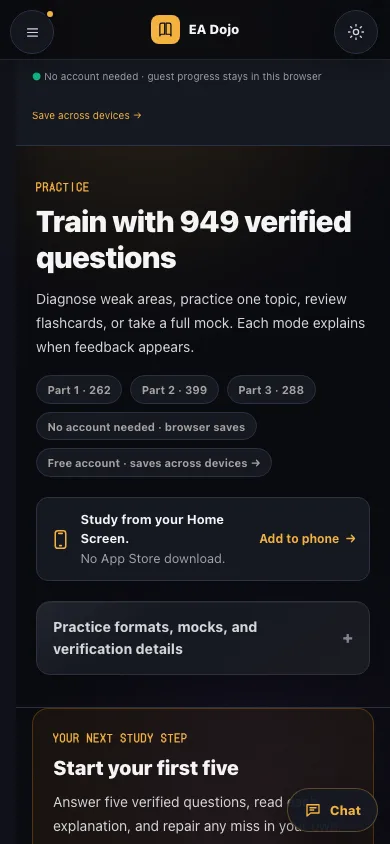
- 5-question practice rounds between other tasks.
- Flashcards, one card at a time.
- Unit lessons in the study path.
- The Study Group chat, which fills most of the screen on a phone.
Timed mock exams also work on a phone, but 3 hours 30 minutes is easier on a larger screen.
What to know
- You need a connection. EA Dojo does not work offline.
- Progress: without an account, progress stays in that phone's browser. A free account syncs it with your computer; see progress tracking.
- No subscription: adding EA Dojo to your phone does not start any subscription.
Example: a 10-minute commute routine
- Open EA Dojo from your home screen; it starts in practice.
- Do one 5-question round in your weakest part.
- Use the repair step on any miss.
- Finish with five flashcards.