EA Dojo on your phone
Your next study session,
one tap away.
Add EA Dojo to your Home Screen. It opens like an app, with no App Store download needed.
Use the steps for your phone below. If your browser offers a direct install button, it will appear here.
Straight to practice
Tap the EA Dojo icon to open practice. Skip typing the address or finding the right browser tab.
More room to study
An app window removes the usual browser address bar and tabs. Your phone may still show its system controls.
The same current site
Practice, flashcards, study units and community stay together. Updates arrive through the website while you are online.
Apple
iPhone & iPad
Use Safari.
Illustrated examples · menus may look different
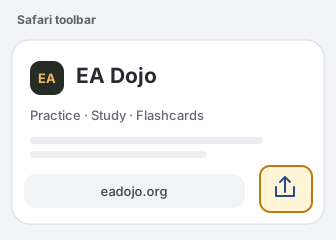
1. Open Safari and tap Share
Open eadojo.org in Safari. Tap Share, the square with an up arrow. If your Safari layout puts Share under More or the Page Menu, open that first.
Read all 3 steps
- 1
Open Safari and tap Share
Open eadojo.org in Safari. Tap Share, the square with an up arrow. If your Safari layout puts Share under More or the Page Menu, open that first.
- 2
Choose Add to Home Screen
In the Share menu, choose Add to Home Screen. Scroll down if needed. Edit Actions can add a missing option.
- 3
Confirm Add, then open EA Dojo
Make sure Open as Web App is on if it is shown, then tap Add. Open the new EA Dojo icon from your Home Screen.
Cannot find Add to Home Screen?
Scroll through the Share menu. Tap Edit Actions to add the option if it is missing. Use a normal Safari tab rather than a private or in-app browser.
Android
Android phones & tablets
Use Chrome.
Illustrated examples · menus may look different
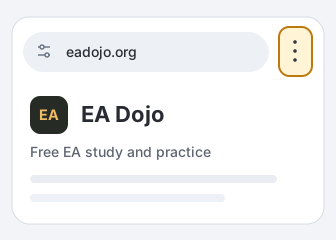
1. Open Chrome’s three-dot menu
Open eadojo.org in a normal Chrome tab. Tap the three-dot menu beside the address bar. If you opened the page inside another app, open it in Chrome first.
Read all 3 steps
- 1
Open Chrome’s three-dot menu
Open eadojo.org in a normal Chrome tab. Tap the three-dot menu beside the address bar. If you opened the page inside another app, open it in Chrome first.
- 2
Choose the install option
Choose Install and create shortcut, then Install. Other versions may call it Add to Home screen or Install app.
- 3
Confirm Install
Tap Install in the confirmation prompt. Then open EA Dojo from your Home Screen or app list.
Only seeing a shortcut, or no install option?
A basic shortcut may open a browser tab instead of an app window. Try current Chrome in a normal tab. You can still use the full website if installation is unavailable.
Keep your progress when you switch
Guest progress stays in the browser or app where you studied. Before switching, sign in to a free account here and wait for “Progress saved to your account.” Sign in again from the Home Screen app if needed.
A few useful details
Does it work offline?
Keep an internet connection for study content, practice questions, community and account sync. EA Dojo loads current reviewed questions from the site; adding it to your phone does not create an offline exam app.
Is installation free?
Yes. Study, practice and flashcards stay free. Timed mocks keep their existing price and any eligible trial. Adding the icon does not start a subscription.
Is this a separate app?
It is the same EA Dojo website, saved as a web app on your device. You do not need an App Store download or a separate app account. Browser menu names can vary by device and version.